Showing posts with label quiz tools. Show all posts

Over 40 Web Tools to Create Quizzes and Polls in Class

November, 2014
Today as I was browsing through my Google Plus feeds I came across this excellent list created by classroom aid. The list features a plethora of useful web tools that teachers can use in the classroom to create quizzes and run polls. Several of the tools mentioned in this list have already been featured in this blog in the past but some are new to us. I  invite you to have a look and share with us what you think of them.


 Follow us on : Twitter, Facebook , Google plus, Pinterest .

Kahoot- Excellent Web Tool for Creating and delivering Quizzes and Surveys to Students

July 28, 2014
Kahoot is another great student response system that teachers can use to create and deliver quizzes and surveys to students. Kahoot provides a learning environment that is ideal for engaging students for it incorporates the precepts of both game-based learning and inquiry-based learning. Kahoot allows teachers to create quizzes and surreys that include a wide variety of multimedia elements such as videos, pictures and text. Each quiz you create can be accessed by students across different devices . Also teachers have the possibility to create time-controlled quizzes. You can set a specific period of time for the answer of each question. In this way students are rewarded not only for the correct answer but also for their timeliness.


How does it work
As a teacher you can create a Kahoot account using a valid email address. Once you are logged in you can then use the creator tool to build quizzes and surveys to deliver to your students. Don't worry Kahoot provides step by step instructions on each step of the process so you won't have any problems creating your quizzes. Now that your activity is ready you can ask students to join in. Kahoot does not require students to open an account to use it. Students need to go to Kahoot.it then enter the PIN you give them .


Ways to use Kahoot with students
There are different ways to use Kahoot in your classroom. Here are some of them:

  • Use it to collect informal feedback from your students
  • Assess students comprehension of a lesson
  • Poll students on matters related to the learning taking place in class
  • Host discussion panels in class where students not only answer questions but also pose their own questions

Follow us on : Twitter, Facebook , Google plus, Pinterest .

InfuseLearning- A Wonderful Student Response Tool

July 25, 2014
InfuseLearing is a great virtual learner response system. In a very basic level, InfuseLearning allows teachers to ask quick assessment questions to check for students understanding. There are seven types of quick assessment questions supported by InfuseLearning. These are : Response Drawing, True/False questions, Multiple Choice, Sort in Order, Open Ended Text Answer, Numeric, Likert Scale(1-5).

source: http://goo.gl/NJT6xp
Here is how InfuseLearning works:

You log in as a teacher and you create a class. There are two types of classes you can create: open enrolment class and private classes. The difference between these two classes is that in private classes, students need to have a generated code to access the class ( this code you get it when you create a class). Public classes are open to anyone with the class ID number to access it.

source:http://goo.gl/NJT6xp
Once you have created a class, share the Room ID of your class with your students. Students  go to student.infuselearning.com and  connect to your room by entering the "Room ID" found in the upper left-hand corner of the Teacher Dashboard along with their name. Now you're ready to start asking questions. Select the type of questions you want to ask and as students respond you can see results in realtime. You will be able to see the details related to the responses and save the results.

The unique feature that sets InfuseLearning apart from other learner response systems is " Draw Response". This quick assessment question allows students to respond to a question by drawing. Students are provided with a drawing canvas where they can draw their answers. Teachers can see students drawings as they happen and all drawings can be saved in PDF format. Another interesting feature from  InfuseLearning is audio narration which allows students to have questions read to them  in different languages.

Watch the video below to see InfuseLearning in action


Check out these excellent guides to help you  learn more about InfuseLearning and how to use it with your students

New Socrative 2.0 Guide for Teachers

July 23, 2014
Here is a new update for fans of Socrative. A few weeks ago Mastery Connect acquired Socrative but the good news is Socrative will still be free for all teachers. Subsequent to this new update, Socrative released a new user guide for teachers which contains all the things teachers need to know in order to tap into the full potential of this platform.


For those of you who are not yet familiar with Socrative 2.0. This is a popular student response tool. It empowers you to engage and assess students through any device or operating system. All activities generate valuable data in real time when you need it. Watch the video below to learn more about Socrative 2.0.


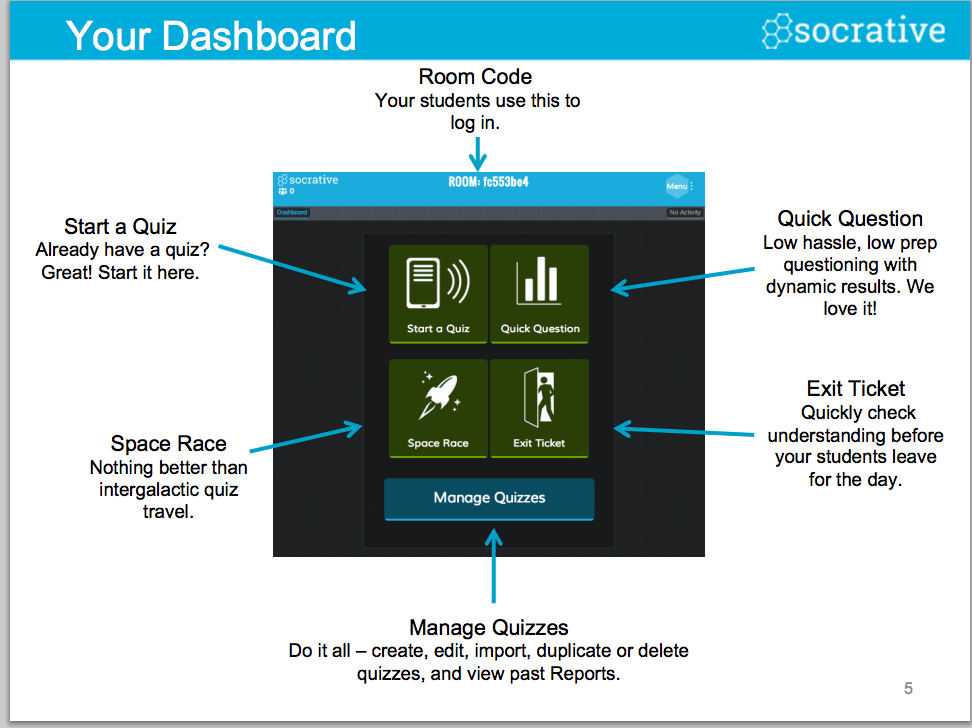
The updated Socrative user guide, which is available for free download in PDF format, covers the following key areas:

  • How to register and login to Socrative
  • Illustrative visual on the elements composing the dashboard
  • How to manage quizzes on dashboard
  • What students see
  • How to create and edit a quiz
  • How to tag a quiz
  • How to create a multiple choice quiz
  • How to create a true/false quiz
  • How to create a quiz with sort answers
  • How to manage My Quizzes page
  • How to import a quiz
  • How to start a quiz
  • Student paced quiz- what students see/ what you see
  • Teacher paced quiz what you see/ what students see
  • How to send a quick question: multiple choice, true/false, short answer,
  • Space race
  • Exit ticket
  • Reports
  • Report types

 Follow us on : Twitter, Facebook , Google plus, Pinterest .